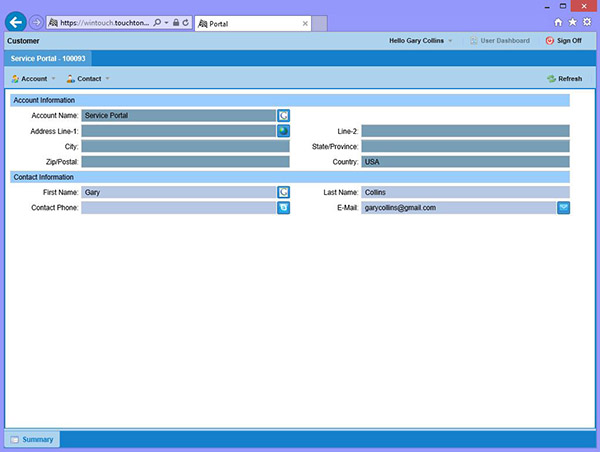
The following steps guide you through the process required for registration and login.
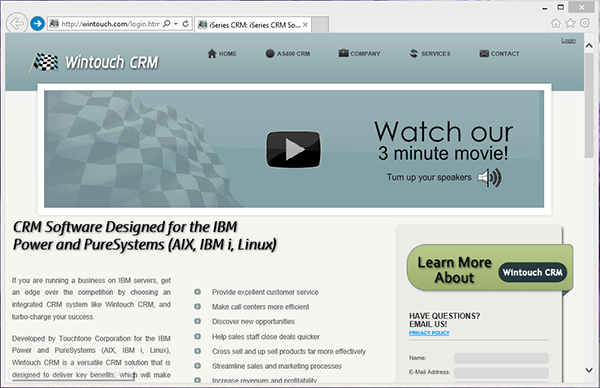
1. Before the portal user can login to the portal they must register with Wintouch. A method must be used to give the users access to the Portal Sign In form. For our example we added a login link to a web page giving the user the ability to login anytime they wish by simply going to the website and selecting the link.
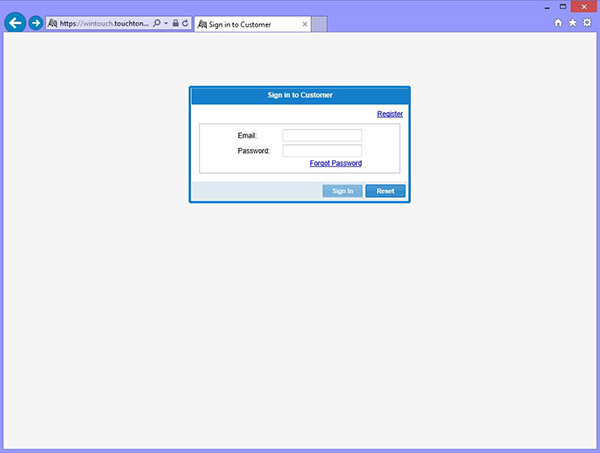
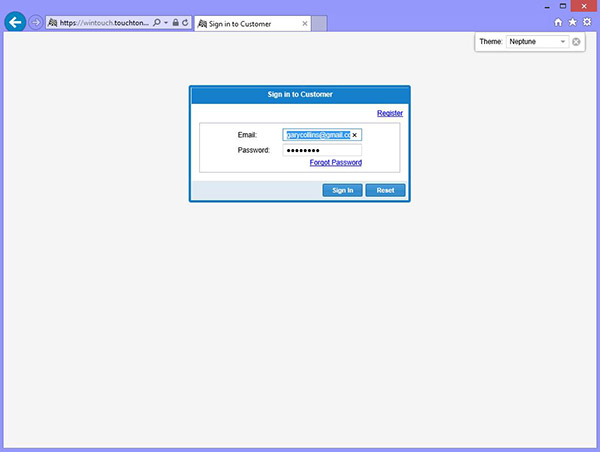
2. After the user has selected the link they are redirected to the Portal Sign In form. If the user has already registered they simply continue by logging in as expected. If they have not registered they must select the register link located in the upper right corner of the Registration Form.
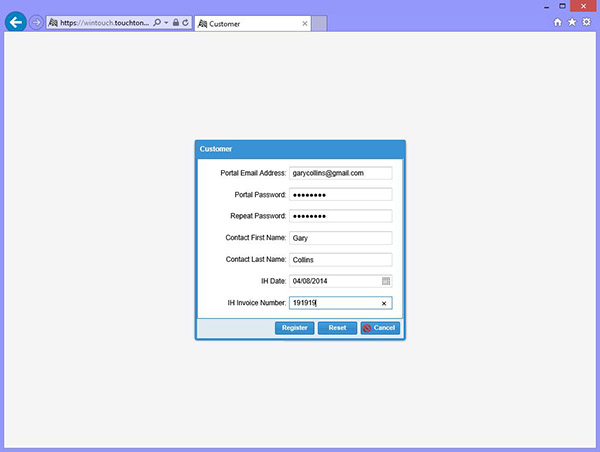
3. The user is then redirected to the Registration Form that was previously created. The must enter the requested information.
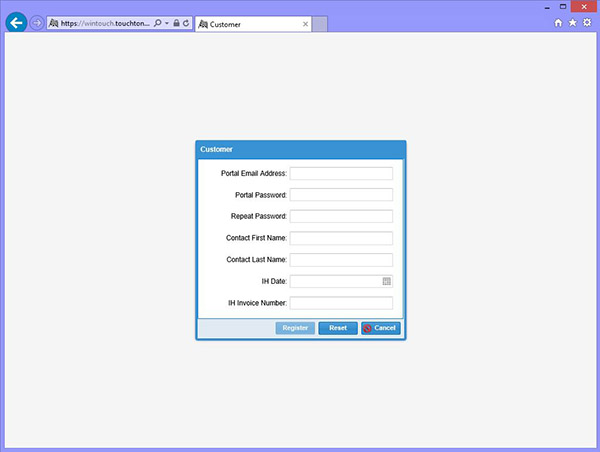
4. It is important to mention that for our example we used two fields for the unique values required to identify the associated account. We used Invoice History Date and Invoice History Number. Both of these fields are expected to be values related to the last invoice the portal user has had with us. This information is recorded in Wintouch and is known by the user. The user must accurately submit the correct values during the registration process to complete the registration successfully.
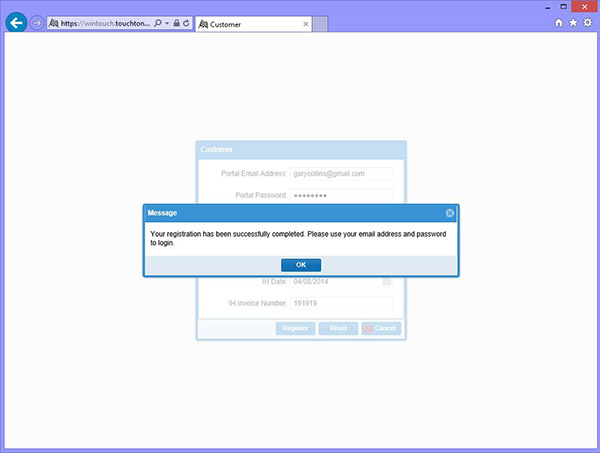
5. If the users information was processed successfully they will see a confirmation message indicating the registration was successful.
6. After the user clicks the Ok button, they will be redirected back to the login form. Now they can login using their e-mail address and password.
7. Following login the user will be redirected to the Customer Portal.